After completing Getting Started, click the cloud icon (sidebar on PC, or find the icon in the bottom hamburger menu on mobile) to open the sync control view.
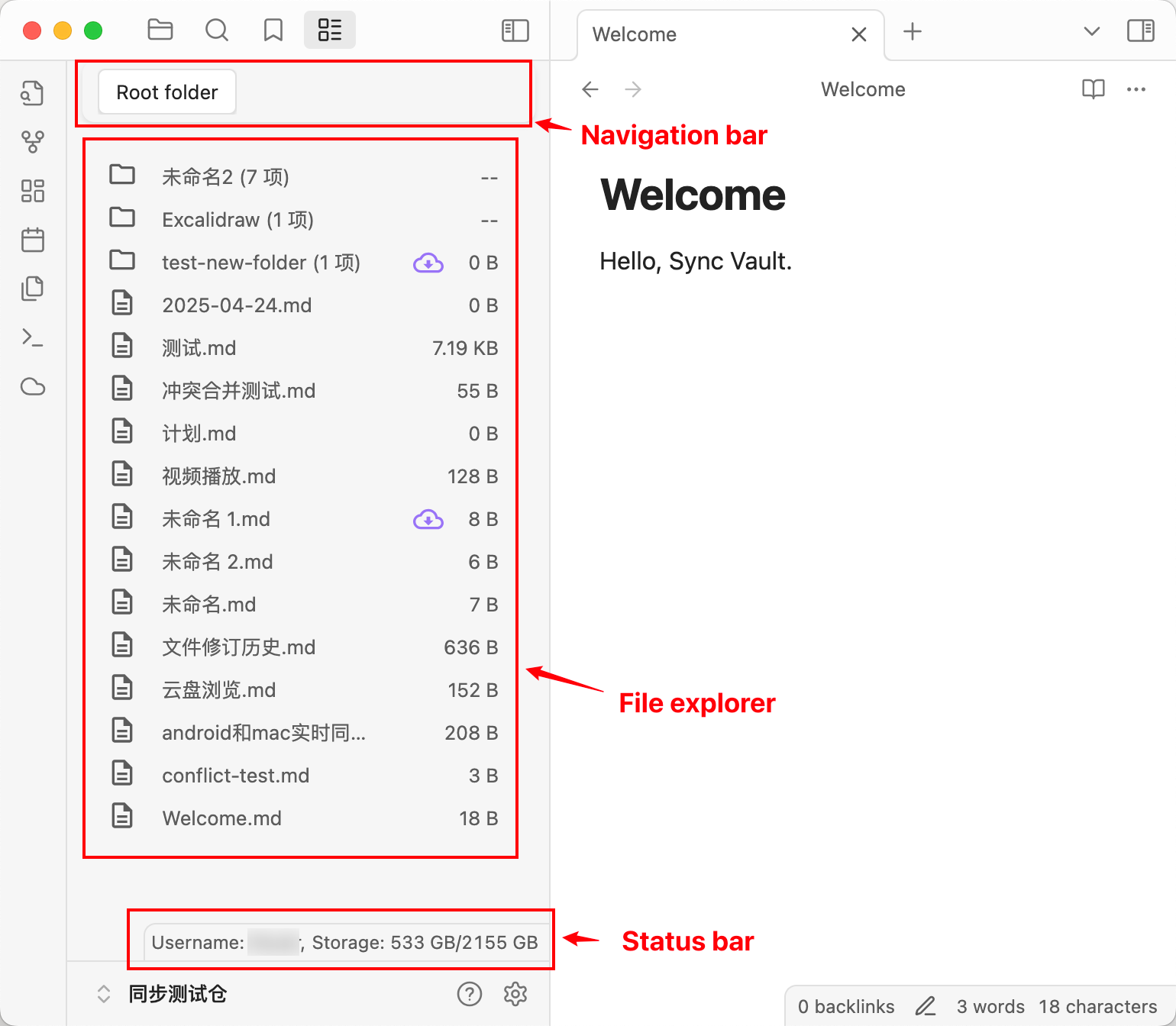
Interface Introduction
Navigation bar: File navigation bar for quickly switching file paths.File explorer: File list for viewing and managing files and folders.Status bar: Cloud storage information, displaying username and storage capacity.
Upload Files
In the File explorer, select the file to upload and click the upload icon next to it to upload the file to the cloud storage.In the File explorer, select the folder to upload and click the upload icon next to it to upload the folder to the cloud storage.
The icon disappears when the upload is successful.
Download Files
In the File explorer, select the file to download and click the download icon next to it to download the file to your local device.In the File explorer, select the folder to download and click the download icon next to it to download the folder to your local device.
The icon disappears when the download is successful.
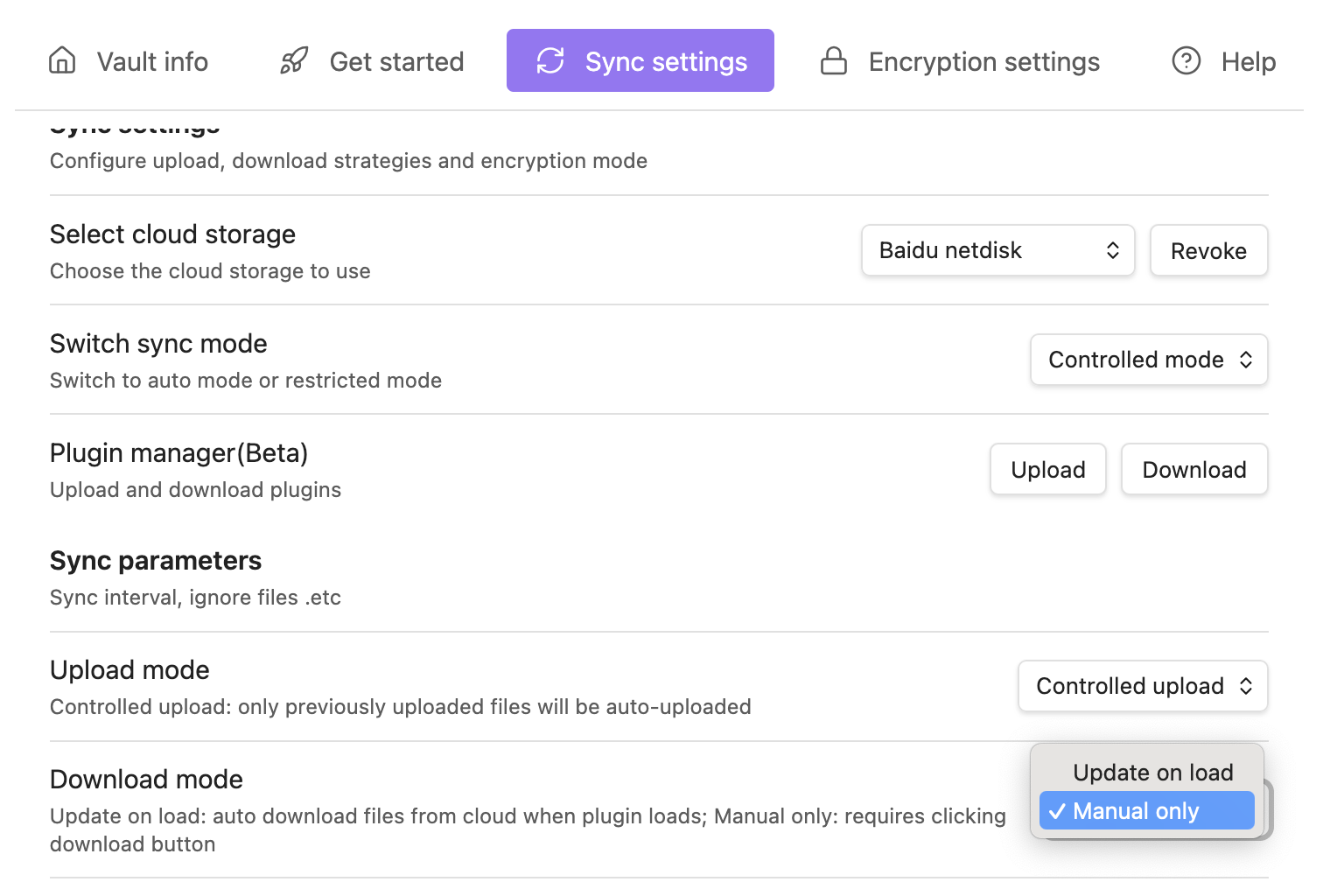
Sync on LoadWhen loading or refreshing the view in restricted mode, pending files will be automatically downloaded from the cloud. This reduces the need for manual operations.
Get Cloud File List
Right-click (long-press on mobile) in the Navigation bar to bring up the menu, then select Refresh to fetch the latest cloud file list.
Delete Files
In the File explorer, select the file to delete, right-click (long-press on mobile) to bring up the menu, and select Delete to remove the file from both local storage and cloud storage.In the File explorer, select the folder to delete, right-click (long-press on mobile) to bring up the menu, and select Delete to remove the folder from both local storage and cloud storage.
Example 1: Sync Modified Files from PC to iPad
Steps:
- Modify the file on your PC.
- Click the cloud icon to open the sync control view.
- In the
File explorer, select the modified file and click the upload icon next to it to upload the file to cloud storage. - Open the sync control view on your iPad.
- In the
File explorer, select the file to download and click the download icon next to it (if the download icon doesn’t appear, refresh the view to get the latest cloud list) to download the file to your iPad.