Based on version 0.9.1. If there are updates to the beta version, the latest version shall prevail.
Usage Scenarios
- Need an extreme real-time synchronization experience.
- Need multi-user real-time content sharing.
Try the Web Version
Please visit: Peer-to-Peer Sync Web Version
How to Operate
When multiple devices to be synchronized are on the same LAN (or via a relay server, public beta in progress, click to learn more), you can use peer-to-peer (P2P) to sync files.
This feature requires the use of a signaling server. For details, see Start the Signaling Server.After following the above steps, the content across multiple vaults will sync automatically; edits made in one vault will be updated to other vaults in real time.
Step 1: Start the Signaling Server
bash
$ git clone git@github.com:abcamus/webrtc-signaling-server.git
$ cd webrtc-signaling-server
$ npm run docker:build
$ npm run docker:run
Check the signaling server IP (assumed to be X.X.X.X:1234).
Step 2: Configure Peer-to-Peer Sync
- Open the
Sync Vaultplugin settings, selectGet started, then chooseReal-time sync. - Click
Sync settings, and enterws://X.X.X.X:1234in theConnection serverinput box.
Step 3: Discover and Connect Devices
Click the cloud icon (sidebar on PC, or icon in the bottom hamburger menu on mobile).
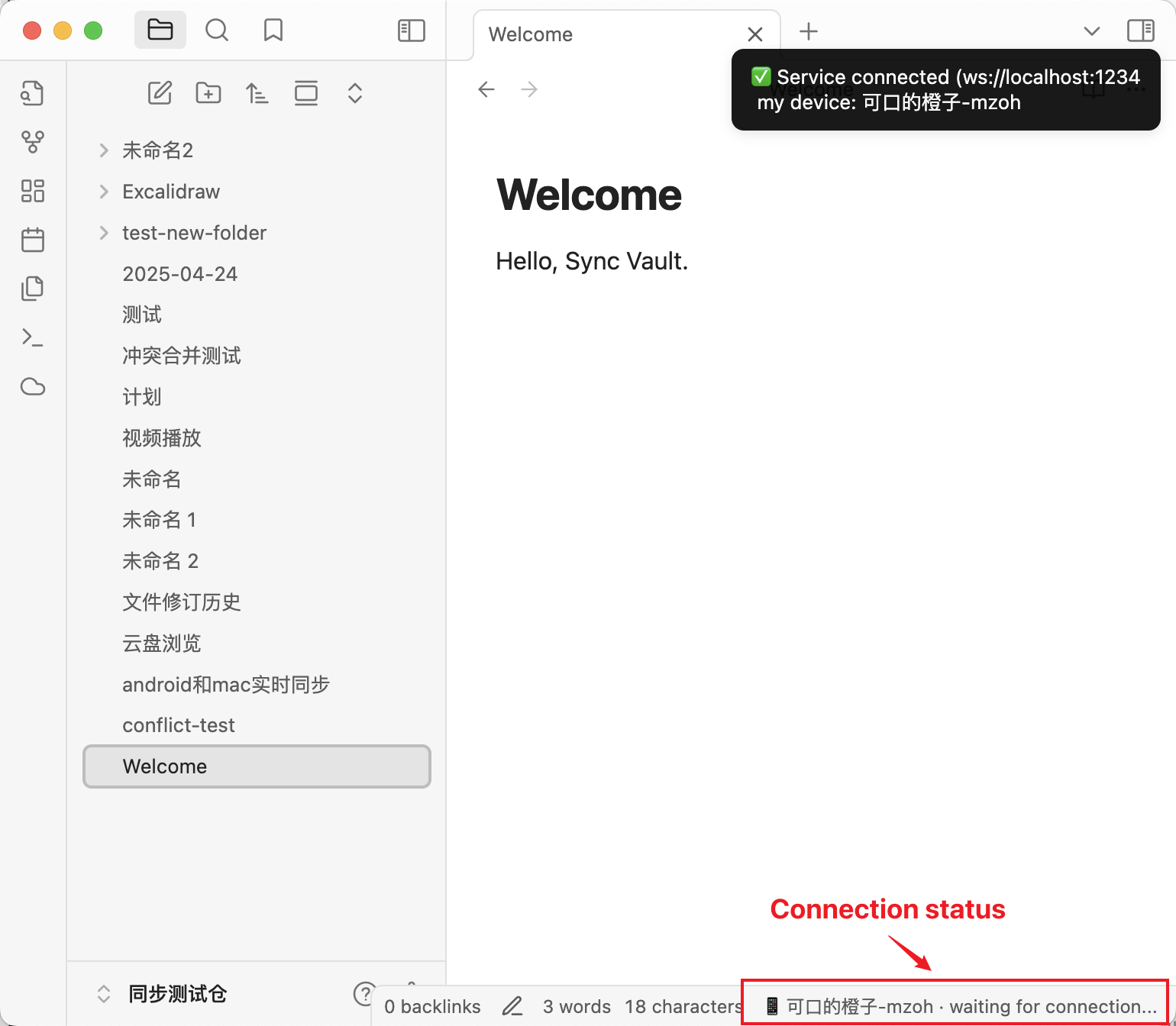
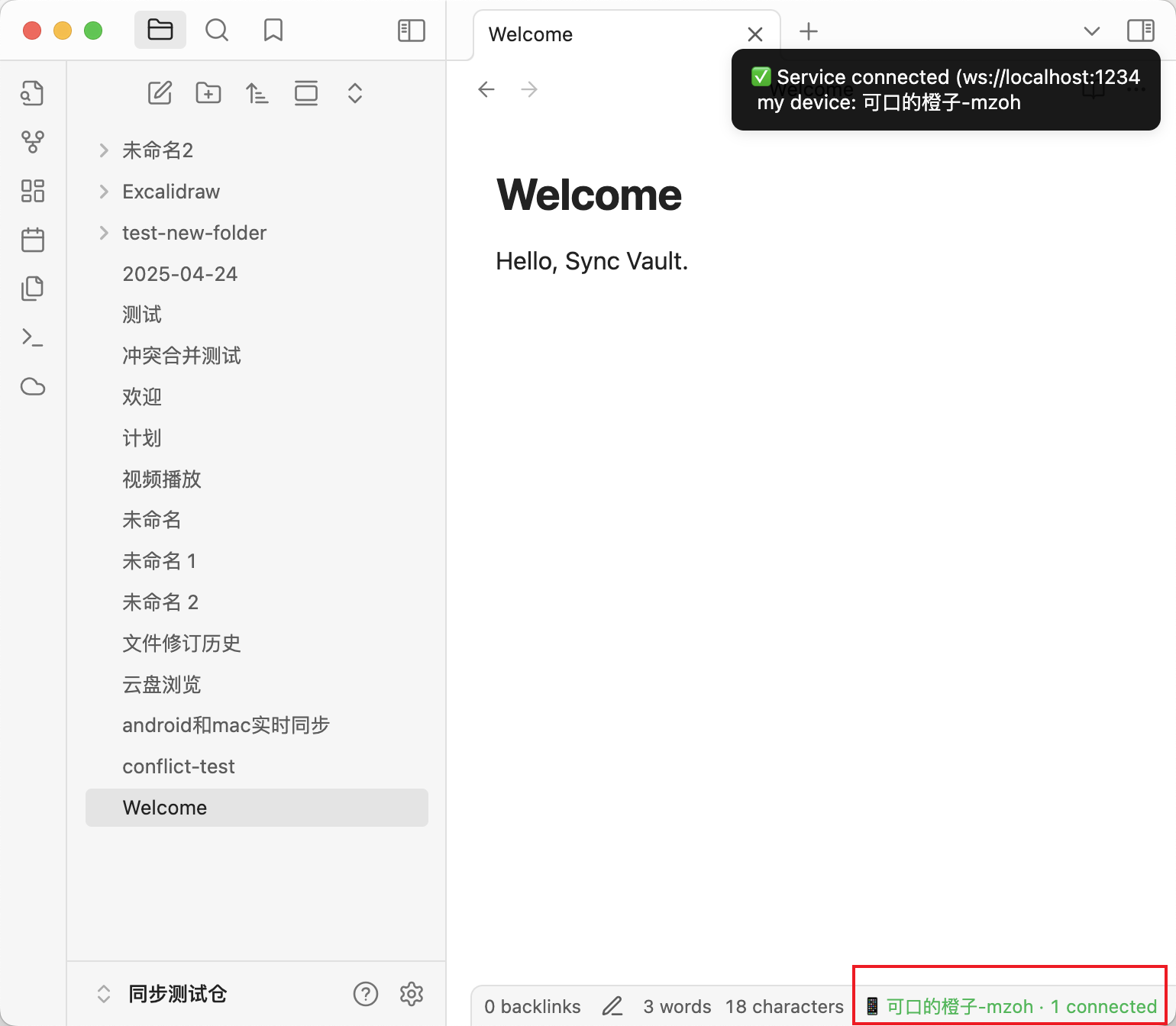
The Connection status shows the current device name and the number of connected devices.
Scenarios Where Direct Connection Fails
Relay via a TURN Server is required. For how to deploy it on a NAS, refer to here.