Frequently Asked Questions (FAQs)
-
Cloud Drive Authorization Failure
Check if a network proxy is enabled. Alternatively, open the terminal and refer to View Terminal Error Logs.
-
No Files Synced to New Devices & No Repository Folder on Cloud Drive
Verify if the repository name is valid. For details on Baidu Cloud Drive filename symbol restrictions, see this link.
-
Partial File Sync Failure
- Check if the file path contains emojis—emojis are considered invalid characters.
- In Automatic Mode, sync failures may occur due to network changes. The system will automatically retry in the next sync cycle.
- Try switching to Controlled Mode for manual sync. If manual sync still fails, submit an issue on Github or Gitee, or discuss it in the community group.
Self-Diagnosis Guide
The sync experience depends on external factors, including:
- Network stability (affects sync stability).
- Network bandwidth (affects sync speed).
- Network topology (affects peer-to-peer connection capability).
- Cloud drive account tier (affects download speed).
Sync Vault users can self-diagnose sync issues as needed.
graph LR
Q2(Slow Sync Speed)
Q1(File Sync Errors)
A1(Run sync speed tests and select the optimal cloud drive)
A2(Obtain diagnostic overview - check errors)
A3(View latest sync report - get detailed error info)
Q1-->A2 & A3
Q2-->A1
Obtain Diagnostic Overview
Go to the Repository Info settings tab, click the “Diagnose” button, and view the diagnostic information, which includes the following sections:
-
System InformationDisplays Obsidian version, Sync Vault version, and current system type.
json
{ "platform": "macOS", "obsidianVersion": "Obsidian Repository - Obsidian v1.9.12", "pluginVersion": "0.9.10.beta2" } -
Repository InformationTotal number of files and the cloud path corresponding to the repository.
{ "name": "Obsidian Repository", "path": "/apps/obsidian/Obsidian Repository", "totalFiles": 513, "configPath": "/apps/obsidian/Obsidian Repository" } -
Current ConfigurationPlugin-related settings.
{ "ignorePattern": "^(New Folder).*$", "fileSizeLimit": 100, "encryptMode": false, "syncThemes": true, "syncPlugins": true, "showHidden": true } -
Sync StatusIncludes current sync mode, cloud drive, and authorization code expiration time.
{ "mode": "restricted", "isLiveMode": true, "cloudDisk": "baidu", "tokenValid": true, "tokenExpiry": "2025/9/20 11:40:15", "lastSyncTime": null } -
Sync StatisticsRecords last sync time, total sync attempts, and recent errors.
{ "lastSyncTime": null, "totalSyncTimes": 0, "recentErrors": [], "totalFilesProcessed": 0 } -
Recent Errors
{
     "recentErrors": []
}
View the Latest Sync Report
During cloud drive sync, users can access the detailed record of the latest sync. For specific operations, refer to View Sync Report.
Test Sync Speed
- Go to Advanced Features > Debug.
- Locate the “Cloud Drive Performance” section and click the “Perf” button on the right. The following interface will pop up:
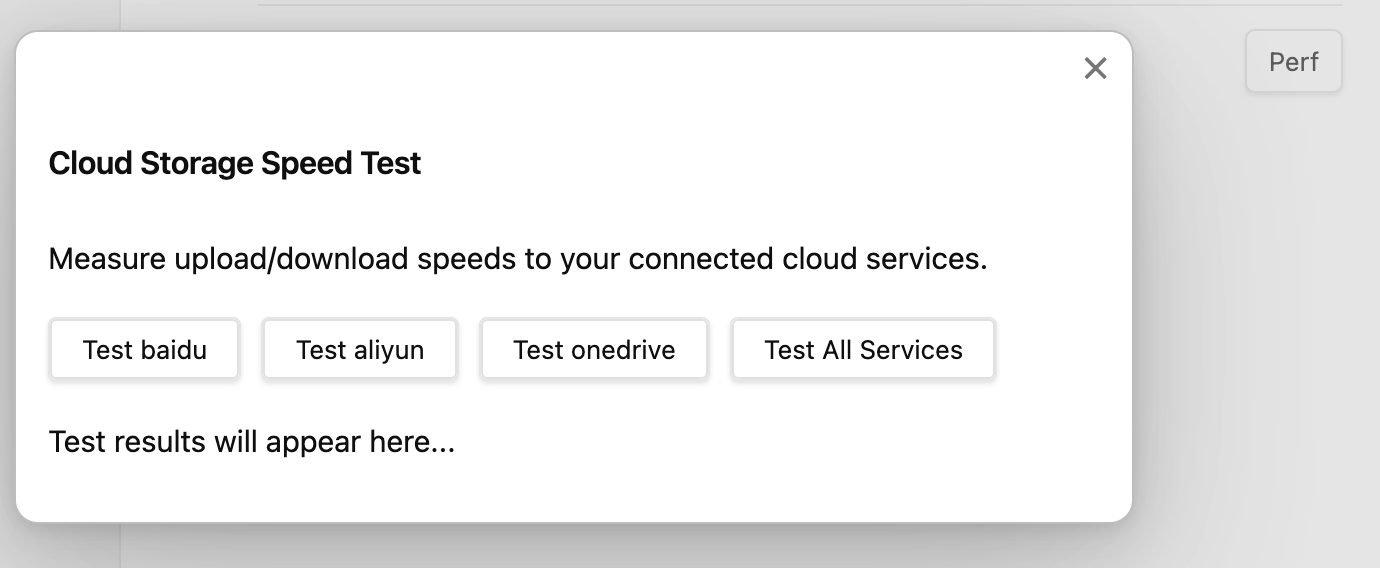
- Click the test button for the corresponding cloud drive to test its speed. The image below shows the speed experience for non-cloud drive members on public mall WiFi:
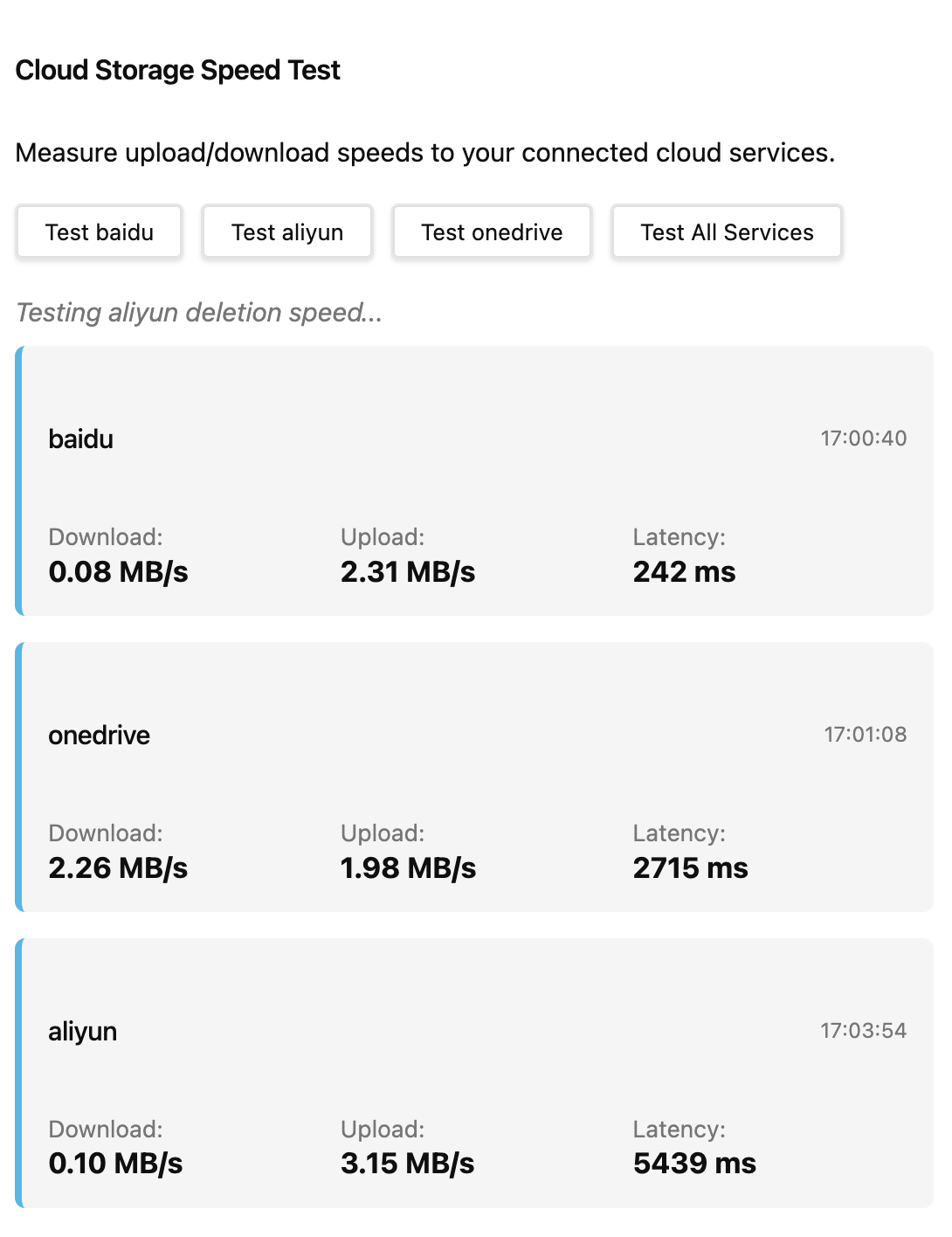
- Download Speed: File download speed in the current environment.
- Upload Speed: File upload speed in the current environment.
- Latency: Access latency of the cloud drive API, which is roughly equivalent to the minimum latency required for one sync.
For detailed sync performance analysis of each cloud drive, click here.
View Terminal Error Logs
Open the Obsidian terminal to check for errors:
- macOS: Press
cmd+option+i - Windows: Press
ctrl+shift+I